HAULTOOLSOFFLINE FIELD GUIDE
Back to HaulToolsDownloadLanguage
HaulTools • ATS 1.61.1.1 • By TheBabyGoat

Everything you need.
Before the next shift.

Install with confidence. Learn the controls. Run the truck and the company your way.

21 chapters3 languagesOffline ready

Meet HaulTools

Your truck, your workday, your company.

HaulTools adds connected driving and company-management systems to American Truck Simulator: a logbook, inspections, walk-around trailer service, CB conversations, dispatch, multi-stop deliveries, employees, maintenance and finances. This guide covers HaulTools for the supported Windows x64 ATS 1.61.1.1 build.

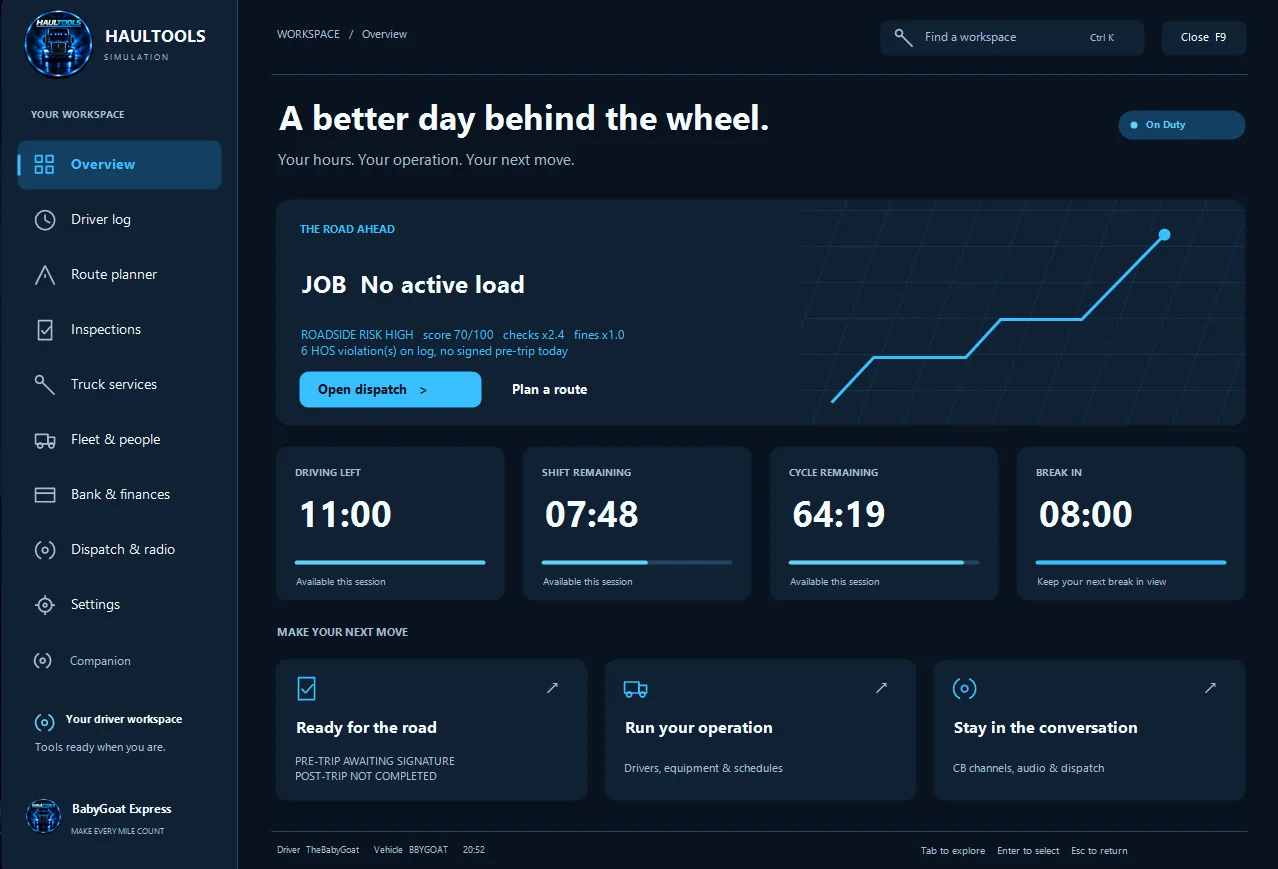
HaulTools dashboard overview with driver, job, duty and current truck information.
Dashboard overview: driver status, current job, duty status and current truck information.

How the parts fit together

  • HaulTools.dll runs the plugin and supported native integrations. ATS telemetry supplies the live truck, time and job information.
  • HaulTools_Tools.scs supplies the matching in-game interface. The runtime folder contains the separate CB audio pack and release defaults.
  • Company records and preferences persist separately from the installed DLL. Feature switches let you choose how much simulation you use.

Install the mod

Install the DLL, runtime folder and matching SCS together.

Close ATS first. Use the complete compiled HaulTools release for your supported game build. A source-code ZIP is for development; an update-only package assumes the full runtime/audio is already installed. The installer checks the actual game executable, so a VR or hotfix executable with the same visible version may still be incompatible.

Option A · HaulTools installer

  1. Run the supplied setup EXE. The standalone edition asks for the complete release ZIP; an embedded edition already contains it.
  2. Review the detected ATS game folder and ATS user folder. Confirm OneDrive Documents or a custom -homedir if you use one.
  3. Choose Install HaulTools and complete the Windows administrator prompt. Setup validates files and backs up replaced mod files.
  4. Start ATS, enable HaulTools v2.0 in Mod Manager for your profile, apply the changes and load the truck.
HaulTools installer welcome screen with Choose ZIP and Continue controls.
Standalone installer reference. The single-file embedded edition does not need a separate ZIP selection.

Option B · Manual installation

Release itemDestination
HaulTools.dll<ATS>\bin\win_x64\plugins\HaulTools.dll
HaulTools/<ATS>\bin\win_x64\plugins\HaulTools\
HaulTools_Tools.scs<ATS user folder>\mod\HaulTools_Tools.scs

Find the game folder through Steam’s local-file browsing command. The usual ATS user folder is Documents\American Truck Simulator; it may be redirected. Copy the contents of the release’s install-shaped folders into the actual destinations. The real game subfolder is win_x64. Avoid an extra nested HaulTools\HaulTools folder. Enable the SCS and remove older duplicate HaulTools UI packages from the active mod set.

First launch & activation

Get into the truck, activate, then choose your preferences.
  1. Load your ATS profile and wait until the truck world is ready. Press F9 to open HaulTools.
  2. If activation is required, choose SIGN IN WITH PATREON and follow the browser flow using the account with your HaulTools access. Return to the game and check the status. Keep the PC online during activation.
  3. Complete the first-run setup if shown. Set your driver/company details and review duty status, hours cycle, audio devices and Settings > Simulation.
  4. Before a normal shift, complete a pre-trip, confirm the trailer service is finished, check the active route and review due company tasks.

Controls & workspaces

Defaults shown here; your saved bindings take priority.
ActionDefault
Main interface / closeF9 · Esc
Exit / enter cabF12
Walk / run / headlampW A S D / ↑ ↓ ← → · Shift · Ctrl + F12
CB push-to-talk / repliesF10 · Alt + 1 / 2 / 3
CB powerCtrl + Shift + R
CB / logbook / dispatch windowsCtrl + Shift + C / L / D
Small-window interactionCtrl + Shift + M
Off duty / sleeper / driving / on duty / break1 / 2 / 3 / 4 / 5

Trailer actions use your ATS Trailer attach/detach keyboard binding, normally T. Walk inspections use the detected ATS activation binding, with E as fallback; the on-screen prompt is authoritative. Change supported HaulTools bindings in Settings > Hotkeys. F12 and reserved combinations are not interchangeable with normal menu hotkeys.

The main workspaces are Dashboard, Logbook & Rest, Inspections & DOT, Truck Services, Fleet & Hiring, Bank & Finances, Dispatch & CB and Settings. Use the page’s ? button for contextual help. For small driving windows, enable interaction, drag them into position, then use Save UI widgets in Settings and leave interaction mode.

Walk mode

Work around the parked truck.
  • Park and secure the truck before pressing F12. Wait for the exit fade to finish. Move with WASD/arrows and look with the mouse; hold Shift to run.
  • The truck controls are isolated while walking. The walk contact-damage guard protects the truck, trailer and cargo from walking collisions; it is not a general driving-damage setting.
  • Walking and running sounds are embedded. Switch them off in Settings > Simulation if desired. Use Ctrl+F12 for the headlamp and Settings > Headlamp for beam adjustments.
  • Read the notification bar for the next action. Press F12 to return to the cab. Transition fades hide the notifications until the view is ready.
In-game walk view beside the truck with a signed pre-trip notification.
In-game reference: a completed inspection still needs a signed report. Follow the current notification at the top right.

Connect & disconnect trailers

Mechanical coupling first; outside service follows.

Hook up

  1. Enable Outside trailer service in Settings > Simulation. Back into position using ATS coupling; with Advanced Coupling, align the kingpin correctly. Use the native attach key if ATS requests mechanical engagement.
  2. Once the fifth wheel is locked, follow the exit prompt and press F12. At the indicated stations, raise the landing legs if required, then connect the air/electrical lines with the displayed attach key.
  3. Wait for the completed-hookup confirmation before driving. A trailer already fully coupled in a loaded save does not require a cosmetic second hookup.
Truck mechanically coupled to the trailer with the HaulTools prompt to finish outside hookup service.
After the native fifth-wheel connection, exit the cab and finish the outside hookup service.
Trailer landing legs with the HaulTools prompt to raise them during hookup.
Raise the trailer legs when prompted during hookup.
Disconnected trailer airlines with the HaulTools prompt to connect them during hookup.
Reconnect the trailer airlines when prompted.
Connected trailer airlines with the HaulTools message that hookup is complete.
Hookup completes after the airlines are connected; return to the cab.

Unhook

Initiate the detach workflow and follow the outside prompts. For trailers with legs, lower the legs, disconnect the lines and complete the fifth-wheel release-handle step. For a verified legless trailer, disconnect the lines outside, return with F12 and use ATS’s native unhook command when prompted. Disconnecting lines alone leaves the fifth wheel coupled.

Truck and trailer parked with the HaulTools prompt to begin the full outside unhook workflow.
Start the full outside unhook workflow with the combination parked and secured.
Trailer landing legs with the HaulTools prompt to lower them during unhook.
Lower the trailer legs when prompted during unhook.
Trailer airlines and cables with the HaulTools prompt to disconnect them during unhook.
Disconnect the trailer lines before completing the fifth-wheel release.

Pre-trip & post-trip inspections

Inspect each station, then sign at the driver door.
  1. Park, open Inspections & DOT and begin the appropriate pre-trip or post-trip walkaround. Exit the cab when prompted.
  2. Follow the current cyan marker to its truck/trailer service zone. It stays anchored to the vehicle station and is visible from a distance. Move close enough for the interaction prompt.
  3. Press the displayed inspection key to mark the item OK. Hold Shift with that key to record a defect. Work through every required item; do not mark a known defect as OK.
  4. Return to the driver-door marker and use the displayed key to sign. Wait for PRE-TRIP SIGNED or POST-TRIP SIGNED. Starting or completing the checklist without signing is not a signed report.
HaulTools Inspections and DOT page showing pre-trip, post-trip and DOT inspection controls.
Inspections & DOT: start pre-trip/post-trip walkarounds and review DOT inspection tools.
Walkaround inspection view beside the truck with the active inspection prompt visible.
Walkaround inspection: follow the active station prompt around the truck.
Walkaround inspection view showing the truck and trailer combination during the inspection workflow.
The walkaround continues around the full truck/trailer combination as each station is completed.

The logbook tracks inspection records and can be audited at a DOT check. Finish your post-trip at the end of the game day. Switching Walk inspections off leaves desk inspection records available. Markers represent service zones, not exact model sockets; unusual modded chassis or sharply angled trailers can place a zone differently from the visible component.

HaulTools Inspections & DOT page showing an out-of-service DOT/weigh inspection, HOS violations, latest findings and the OOS fee.
DOT / Weigh Inspection: review current status, latest findings, out-of-service restrictions and required fees or rest.

Logbook, rest & DOT

Use ATS game time to manage the working day.

Choose the appropriate duty state in Logbook & Rest. Automatic duty changes can mark driving when enabled; review your status when parked. The simulation tracks an 11-hour driving allowance, a 14-hour shift window, a break after eight cumulative driving hours and a selectable 60/7 or 70/8 duty cycle. These are HaulTools gameplay systems.

HaulTools Logbook and Rest page with HOS clocks, annotations, log table and duty controls.
Logbook & Rest: HOS clocks, annotations, log entries and duty-status controls.
RestIn-game effect
30 minutes without drivingQualifies for the break counter; it is not a full daily reset.
10 continuous hours off duty / sleeperResets the daily drive/shift counters.
34 continuous hours of qualifying restResets the cycle.

In supported single-player play, Sleep Anywhere can advance time while stopped; the default sleeper rest is 600 game minutes. Fast Break can advance 30 game minutes. Wait for confirmation after the animation or fade. In Convoy these actions select duty only and ordinary game time must pass; they do not skip the shared clock.

DOT checks and records

A native weigh-station stop can trigger a HaulTools logbook, inspection or combined check when random checks are enabled. Read the findings, required rest/service and any out-of-service restriction before continuing. Paying a charge does not itself complete an unfinished inspection or repair. Export CSV from logbook tools when needed. RESET HOS and CLEAR LOGBOOK are different actions; clearing history is not a way to renew the first-day inspection exemption.

HaulTools Logbook & Rest page showing a weigh-station officer request for the ELD logbook and an HOS restriction found.
Weigh-station enforcement can request the ELD logbook and flag an HOS restriction while the officer is active.

CB radio & voice

Choose the right microphone and learn one command at a time.
  1. Open Dispatch & CB > Audio & voice and select the intended input/output devices. Check Windows microphone permission and the recording level.
  2. Turn on CB radio. New defaults are 10% voice and 30% static/filter volume; these are independent controls. Adjust chatter frequency, AI drivers and conversations to taste.
  3. Hold your PTT binding, say one complete phrase, then release it and wait for the response. Use the displayed reply buttons or Alt+1/2/3 when a conversation offers replies.
HaulTools Dispatch and CB Audio and Voice tab with audio devices, volumes and speech recognition controls.
Audio & Voice: select devices, adjust levels and test speech recognition.
HaulTools CB Radio tab with power, channel, voice, static and chatter controls.
CB Radio: power, channel, voice/static levels and chatter controls.
Try sayingPurpose
radio checkTest recognition and a response.
dispatch find me a loadSearch nearby freight offers.
dispatch find me a multi-stop loadRequest an eligible multi-stop route.
dispatch accept loadAccept the current available offer.

The supplied voice commands and custom phrase format are English. This guide’s Spanish/German translations do not add Spanish/German recognition or recordings. Custom phrases live in the active configuration’s CB_SpeechPhrases.txt; preserve the command IDs and format and restart ATS after editing. CB chatter is simulated/prerecorded communication, not voice chat with other Convoy players.

Dispatch & multi-stop loads

Follow the HaulTools stop card through the entire delivery.

Use Dispatch & CB to review player job offers and the separate dispatch window. The ordinary player-job dispatch switch is off in the supplied defaults; explicit multi-stop requests have their own path. Request while parked and wait for planning to finish. A request still needs valid depots, road connections, cargo capacity and skills; it does not guarantee an offer.

HaulTools Dispatch tab showing freight request buttons, multi-stop controls and dispatch settings.
Dispatch: freight requests, multi-stop requests, dispatch window and automatic-offer controls.
Eligible for new multi-loadsExcluded examples
Dry vans/box trailers; refrigerated or insulated boxes; log trailers; flatbeds carrying recognized lumber.Tankers, lowboys, dumpers, silos, livestock, car carriers, machinery-loaded flatbeds and unknown bodies.

Doubles qualify only when every loaded trailer body is eligible; empty dollies are ignored. Existing saved multi-stop contracts remain finishable. Current new-plan defaults are 3–6 delivery stops and a maximum 300-mile total delivery route; travel to pickup is separate.

  1. Accept the offer and collect the load. Verify the current stop on the HaulTools card and the GPS destination before leaving.
  2. At a receiver, park within 650 ft (198.12 m) of its recognized delivery/company point, on the required level. Keep the trailer attached, apply the parking brake and remain stopped for two seconds.
  3. Choose UNLOAD STOP and remain parked through the ten-second countdown. Wait for cargo/payment confirmation and the next GPS update. Intermediate stops pay $1,500 by default; the final delivery uses ATS’s normal contract settlement.
  4. Use the card’s unload/final-delivery workflow at the last receiver and confirm completion. Do not assume the native contract panel lists every intermediate stop.

Fueling & Fuel Card

Use another fuel aisle within the recognized station radius.

HaulTools extends recognized fuel-only triggers to a horizontal 150 ft / 45.72 m radius. The circle is centered on the station trigger, not on the walker. You can refuel in another aisle within that radius when ATS’s normal conditions are satisfied. Stop, turn off the engine as required and use the native fuel action while following HaulTools prompts.

In-game manual refueling prompt shown beside the truck and trailer.
Manual refueling prompt shown while positioned in a recognized fuel zone.
  • The extension keeps the native height restriction. A bridge above the station is not a valid fuel point. Garages, delivery points, tolls, mixed-action and unsupported triggers retain their normal range.
  • ATS still controls fuel quantity, price and pump operation. The Fueling prompts switch only controls HaulTools notifications; it does not enlarge or disable the radius.
  • Fuel Card enrollment, tiers, savings and weekly invoices are managed separately. Review the current account and settle invoices in the Fuel Card/finance page. An alert does not pay the invoice.
HaulTools Fuel Card account page with card status, account allowance, weekly invoice and payment actions.
Fuel Card: account/card status, available allowance, weekly invoice and payment actions.
[Simulation]
FuelRadiusFeet=150

Hiring & driver/truck manager

Hire into real garage capacity and verify each assignment.

Fleet & Hiring groups the company overview, applicants, job postings, Driver / truck, schedules and compliance. Job postings target Hotshot, Local or OTR work. Review the applicant, background/MVR and required screening; choose an owned terminal and save it before completing the offer, training or hire. The game rechecks garage space and bank transactions.

HaulTools Fleet and Hiring Overview with fleet counts and selected employee or terminal information.
Fleet & Hiring Overview: fleet totals plus selected driver and terminal status.
HaulTools Job Posting page for configuring Hotshot, Local or OTR openings.
Job Posting: create and manage Hotshot, Local or OTR openings.
HaulTools Applicants page showing the candidate list, applicant details and hiring actions.
Applicants: review candidates, screening details and the hiring workflow.
  • In Driver / truck, select the employee and the owned truck independently. Review their current assignment, availability and garage.
  • Use PREVIOUS/NEXT DRIVERS and PREVIOUS/NEXT TRUCKS to browse larger fleets. Garage dropdowns support the mouse wheel for more destinations.
  • MOVE DRIVER and MOVE TRUCK relocate only the selected asset. ASSIGN SELECTED PAIR assigns an available truck to an unassigned AI driver and can co-locate them when required. Read the result; the active player truck is protected.
HaulTools Driver and Truck page for selecting, moving and assigning ATS drivers and owned trucks.
Driver / Truck: select, move and assign ATS drivers and owned trucks.

Assignments are read back from native ATS state; fleet records belong to the current ATS profile. After switching profiles, wait for its roster to load. “Pending transaction” means an operation has not finished: avoid repeated purchases or hires until its result is known. Applicant MVR history and compliance findings are simulated gameplay records layered onto native ATS driver identity.

Schedules & day-off requests

Drivers request time off automatically; you approve it.
HaulTools ruleTiming in ATS game days
First request opportunityStaggered 3–30 days after enrollment.
Later request opportunitiesRandomly spaced 45–90 days apart.
Advance noticeA scheduled workday 14–28 days ahead.
Pending requestsAt most one future pending request per driver.

Open Fleet & Hiring > Schedules. Use Next request to jump to a pending request, including the correct driver and calendar period. Review it and select Approve request to make the day off. Clear time off declines/clears the selected entry. Receiving a notification does not approve leave.

HaulTools driver schedule calendar with workdays, time off and request controls.
Schedules: review workdays, approved time off and pending driver requests.

Saved work patterns and approved time off determine HaulTools dispatch availability. Requests, decisions and next-request dates survive updates/restarts per profile. Large game-time jumps create fresh requests with notice from the current day, rather than backdating them.

Notifications & compliance

The same notification bar follows you inside and outside the cab.

HaulTools queues drug/alcohol test selections and results, accidents, payroll due and day-off requests. Each alert receives ten seconds of visible gameplay time. F9, pause, loss of focus and cab fades hide it and pause its reading time. Unread alerts survive a restart; after the queue, the current walk instruction returns.

  • Open Fleet & Hiring > Compliance to review the affected employee, test status, deadlines and any SAP/follow-up requirements. Schedule the required action and check its outcome; an alert is not completion.
  • After an accident, review compliance and maintenance together before assigning more HaulTools work. Safety, schedule and service restrictions can block dispatch.
  • Payroll reminders occur at most once per game day while due, with only one unread payroll reminder. Paying wages and approving requests remain manual actions. Fleet simulation must be enabled for its events.
HaulTools Compliance page showing testing status, pending tests, violations and required actions.
Compliance: review testing status, pending tests, violations and required follow-up actions.

Payroll, finances & fleet dispatch

Separate operating results from settled ATS-bank transactions.

HaulTools fleet dispatch assigns eligible employees who are operational and scheduled to work. Days off and home time pause their HaulTools dispatch mileage, revenue and payroll accrual. This is separate from the player’s CB job offers and multi-stop route.

HaulTools Fleet Dispatch Board with drivers, schedules, route details and dispatch actions.
Fleet Dispatch Board: driver availability, schedules, route details and dispatch actions.

Bank & Finances exposes payroll and operating accounts. PAY PAYROLL settles accrued wages through the native ATS bank. Fuel invoices, insurance and service actions also have their own settlement flows. Review the amount and wait for confirmation before repeating an action. A displayed operating revenue/profit total is a ledger figure; do not assume every ledger entry is a fresh ATS cash credit.

HaulTools Bank and Finances company account ledger with balance, income, expenses and transaction history.
Bank & Finances: company account balance, income, expenses and transaction history.
HaulTools commercial fleet insurance page with policy status, premium, claim record and payment actions.
Insurance: policy status, premium, claim history and payment/claim actions.

Truck services & maintenance

Use condition and mileage to plan service.
  • Open Truck Services to review the player truck’s diagnostics, condition and preventive-maintenance status. The default player PM interval is 15,000 tracked miles.
  • Review the indicated repairs, service amount and bank result. A repair-only action does not reset preventive maintenance. Native shop repairs can clear matching repair items once ATS confirms the damage state.
  • Use the fleet maintenance view for employee trucks. Accident damage, wear, random repairs and overdue service affect operational availability. Resolve the actual fault before returning a restricted employee to dispatch.
HaulTools Truck Services page showing diagnostics, condition, maintenance status and service invoice.
Truck Services: diagnostics, condition, preventive-maintenance status and service invoice.

Telemetry gauges describe the truck’s reported condition. A warning lamp alone is not a fabricated HaulTools failure, and minor damage does not automatically mean an out-of-service order. Keep an eye on both the service page and explicit DOT findings.

Simulation & personal settings

Choose the features you want to use.
Settings > SimulationWhat it changes
Outside trailer serviceOutside legs/lines/release workflow. Off restores native coupling.
Fueling promptsPump progress notifications.
Walk inspectionsPhysical inspection guidance and markers; desk records remain.
Walking / running soundsEmbedded footsteps.
Fleet / Hiring simulationHaulTools employee events and applicant/onboarding processing.
CB radioRadio power, shared with the CB page/hotkey.
Random DOT checksFuture HaulTools random checks; existing findings remain.
Automatic duty changes / Sleep AnywhereAutomatic driving status / supported rest-anywhere behavior.
Master simulationPauses ELD/DOT/CB/Fleet/Hiring simulation while retaining individual preferences. Walk switches remain independent.
HaulTools Settings Simulation tab with feature toggles for trailer service, walk inspections, fueling, fleet, CB, DOT and duty simulation.
Settings > Simulation: enable or disable the HaulTools simulation systems you want to use.

Finish an active coupling or walk inspection before disabling it. Turning simulation off is not a reset of debts, paid records or expiry dates. On re-enable, skipped daily events are not replayed, but existing obligations still use ATS time. Normal ATS AI drivers continue while HaulTools fleet simulation is off.

Profile holds identity details; the master switch is on Simulation rather than duplicated on Profile. Display adjusts HaulTools layout/opacity and monitor selection; it does not change the actual ATS video mode. Headlamp adjusts brightness, beam, aim and edge. Hotkeys handles supported keyboard/controller assignments; wheels and button boxes remain under ATS’s normal controls.

HaulTools Settings Profile tab with driver name, company name and sign-out or account controls.
Settings > Profile: driver/company identity and account controls.
HaulTools Settings Display tab with monitor, layout, opacity and UI reset controls.
Settings > Display: monitor selection, UI opacity/layout and reset controls.
HaulTools Settings Hotkeys tab with keyboard and controller assignments.
Settings > Hotkeys: review and assign supported keyboard/controller controls.
HaulTools Settings Headlamp tab with brightness, beam size, aim and edge controls.
Settings > Headlamp: adjust brightness, beam size, aim and edge.

Updates, saves & backups

Keep the data; replace the release files.
  1. Close ATS. Back up your ATS profile and the complete %LOCALAPPDATA%\HaulTools folder together. Include profile backups appropriate to your Steam/local save setup.
  2. Install the new matching DLL and SCS, plus any updated runtime/audio files supplied for that release. Update-only packages reuse the already-installed runtime. Do not replace active personal settings with release defaults.
  3. Keep the SCS enabled for the correct profile, launch ATS and verify F9, audio, current fleet and inspection records. Keep the backup until you are satisfied with the update.
LocationContains
%LOCALAPPDATA%\HaulTools\configActive preferences, configuration and local license data.
%LOCALAPPDATA%\HaulTools\profilesSeparate profile records, including fleet, logbook and inspection state.
%LOCALAPPDATA%\HaulTools\logs\HaulTools.logCurrent-session support log. Copy it before restarting.
<ATS user folder>\HaulTools Installer BackupsReplaced mod-file backups made by the installer.

Convoy & compatibility

Shared world, local HaulTools records.
  • Use a HaulTools release built for your actual ATS executable. The public version number alone is not enough for native integrations; unsupported builds can block F9 or selected native features.
  • In Convoy, sleeper/break actions do not advance the shared clock. Native job mutations, including multi-stop creation, remain disabled. Services can wait while joining, loading or changing sessions.
  • Each user needs their matching local plugin/UI files. Follow the server’s mod requirements. The CB system is not multiplayer voice chat; HaulTools company and logbook data are local rather than a shared company database.
  • Discarding ATS session progress does not automatically roll back HaulTools’ separate saved files. Keep or restore the ATS/HaulTools backups together. Test your exact game/server/mod combination; this guide does not establish compatibility with every combination.

Troubleshooting

Start with the symptom and check the matching files first.
SymptomCheck / next step
F9 does not openLoad the truck world; check the hotkey, exact ATS build, DLL location and active matching SCS. Read the support log for an unsupported executable or missing UI resource.
Menu snaps back / cannot selectConfirm the DLL and SCS came from the same release. Disable duplicate older HaulTools UI packages and restart.
CB silent or fallback voicesCheck power, voice volume, selected output and plugins\HaulTools\audio\cb\cb_audio.htpak. Look for missing/failed recordings in the log. An incomplete audio pack needs the proper release asset.
Voice command not recognizedSelect the microphone, verify Windows permission, hold PTT and use an English supported phrase. Wait for a free channel; try the corresponding UI action to isolate recognition from dispatch.
Trailer lines/legs skip outside workCheck Outside trailer service, the supported build and matching SCS. Use a genuinely detached trailer for the test; already-complete save/load hookups are intentionally kept complete. Follow current prompts.
No multi-stop offer / unloading blockedCheck single-player, eligible body/cargo, parked state, skills, road/depot availability and current job state. For unloading, check the correct receiver, distance, height, brake, connected trailer and dwell time.
No refuel prompt in another aisleMove closer to the actual fuel trigger; confirm engine/stopping conditions. Height, mixed-action or unsupported triggers keep normal limits. FuelRadiusFeet=0 restores stock range.
No requests or fleet alertsEnable fleet/master simulation, load the correct profile and check linked active employees. Initial request opportunities are staggered over 3–30 game days. Alerts pause during menus, fades and focus loss.
Installer rejects a ZIP / broken archiveUse a complete compiled release, not source or a patch. Redownload a truncated archive and check the published size/checksum when supplied. Do not mix files from unrelated builds.

What to send for support

Save HaulTools.log before restarting ATS, plus the ATS user folder’s game.log.txt, a screenshot, your HaulTools/ATS versions and the steps that reproduce the problem. Include whether you use VR, Convoy, a custom truck/trailer or a redirected user folder. Do not post license files, keys or tokens. The creator credit is TheBabyGoat; Discord: the.baby.goat.

Building from source

For creators and testers; players use the compiled release.

The organized HaulTools source keeps launchers in scripts/ and release notes in docs/releases/. Extract it into a fresh folder and open HaulTools.sln. Use Windows with Visual Studio 2022’s Desktop development with C++ workload. A complete release build also needs the full CB audio pack or verified original parts.

ScriptUse
scripts\BUILD_UPDATE.batBuild matching DLL + SCS into dist_update.
scripts\BUILD_DIST.batBuild a complete hardened release into dist.
scripts\BUILD_DLL_ONLY.batDLL only; does not update UI resources.
scripts\INSTALL_UPDATE.batInstall the staged DLL/SCS with ATS closed.
scripts\RESTORE_CB_AUDIO.batAssemble the original audio parts when present.

For a single-file customer installer, add the separate installer builder kit beside the solution. BUILD_INSTALLER.bat builds/packages a complete release; PACKAGE_INSTALLER_FROM_DIST.bat packages an already complete dist. These belong to the installer kit and are not included in the HaulTools source cleanup. Always test the built release in ATS before distributing it.

Guide scope

Prepared from the organized HaulTools source, its current configuration, native UI bindings, release notes and installer 1.0.1. The guide documents that build, not unverified later updates. Screenshots are visual references; game text, saved settings, hardware and custom vehicles can differ. The HTML translations cover this document only.